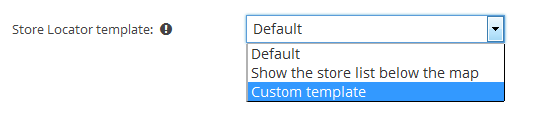
Load a Custom Store Locator Template

If you want to change the store locator template, load your version from your theme folder. That way it isn’t lost when you update the plugin.

The built-in templates are in wp-content/plugins/wp-store-locator/includes/frontend/templates/:

File Template
default.php Default
horizontal.php Horizontal
vertical.php Vertical
  1. Create a wpsl-templates folder in your active theme folder. Use a child theme if you have one.
  2. Copy the template you want to start from into that folder and rename it to custom.php.
  3. Add this code to your theme’s functions.php:
function my_wpsl_custom_template( $templates ) {
$templates[] = [
'id' => 'my-custom-template',
'name' => 'My custom template',
'desc' => 'Shown under the template name on the Appearance page.',
'path' => get_stylesheet_directory() . '/wpsl-templates/custom.php',
// Only when you copied vertical.php:
// 'has_panel' => true,
];
return $templates;
}
add_filter( 'wpsl_templates', 'my_wpsl_custom_template' );

Activate the template

Go to Store Locator > Appearance > Themes. Your template appears as a card with the name you gave it. Click the toggle on that card; the change is saved straight away.

If your template isn’t used, check whether the [wpsl] shortcode on the page has a template attribute. That attribute always overrides the selection on the Appearance page. You can also use it on purpose to load your template on one page only: [wpsl template="my-custom-template"].

Things to keep in mind

  • The template must echo its output. The built-in templates build up $output and end with echo $output;. Keep that last line.
  • Keep the element IDs. The store locator’s JavaScript relies on:
    • #wpsl-wrap, #wpsl-search-input and #wpsl-search-btn
    • #wpsl-map and #wpsl-result-list
    • #wpsl-stores with the <ul> inside it
    • #wpsl-direction-details
    • #wpsl-panel in a copy of the Vertical template
  • Copies of the Vertical template need 'has_panel' => true in the array you register, or the panel layout isn’t applied.
  • Template-specific CSS. The outer #wpsl-wrap element gets the class wpsl-{id}-template, for example wpsl-my-custom-template-template. Styles written for the Horizontal and Vertical templates are scoped to .wpsl-horizontal-template and .wpsl-vertical-template, so they don’t apply to a copy. Add the original class back:
add_filter( 'wpsl_template_outer_classes', 'my_wpsl_template_classes' );
function my_wpsl_template_classes( $classes ) {
if ( in_array( 'wpsl-my-custom-template-template', $classes, true ) ) {
$classes[] = 'wpsl-vertical-template'; // or wpsl-horizontal-template
}
return $classes;
}

Legacy mode

Custom templates written for WP Store Locator 2 keep working on v3. You don’t have to convert them before updating, and you don’t have to switch anything on.

How it works

When the store locator renders a custom template, WP Store Locator reads the file and looks for three things that only ever appear in v2 template code:

  • global $wpsl; or global $wpsl_settings;
  • $this-> — v2 templates ran bound to a class
  • $wpsl-> — the old global template object

If it finds any of them, the template is loaded through the backward compatibility layer, which recreates the environment a v2 template expects: the $wpsl object, the flat $wpsl_settings array, the $this context, and the old template methods such as get_css_classes(), get_dropdown_list(), create_category_filter() and the various button helpers. In legacy mode, templates that end with return $output; work as well as templates that echo their output. A v3 template must echo it.

A few things follow from this:

  • There is nothing to enable or disable. Detection happens per template, every time it is rendered. It isn’t a site-wide mode and it isn’t stored in your settings.
  • It is decided per file. If you have two custom templates, one still on v2 code and one converted to v3, each is handled correctly on its own.
  • Built-in templates are never affected. Only templates loaded from outside the plugin folder are checked — which is every template registered the way this page describes.
  • Converting a template switches it over by itself. Once the last global $wpsl, $this-> and $wpsl-> is gone from the file, it is treated as a v3 template on the next page load. The check also finds them inside comments, so remove them there too.

Where you’ll see it

On the Appearance page, a custom template running in legacy mode gets a warning icon next to its name. Hover it for the explanation.

Right after updating to v3, if you had custom v2 templates, an admin notice lists them and tells you they’ve been kept working.

Both are informational. Nothing is broken and nothing needs doing right away.

Why you should still update your template

  • New features are built against the 3.0 template structure, so a v2 template will gradually miss out on them.
  • If your template calls an old method that no longer maps onto anything, the compatibility layer returns an empty string instead of an error. That part of your template silently renders nothing, which is harder to spot than a clear failure.

Updating a template to the v3 structure

First replace the globals and $this-> calls with the services in scope. A v3 template receives everything it needs as ordinary variables:

Variable Use it for
$wpsl_settings the settings array
$assets_manager CSS classes and custom CSS
$i18n translated labels and label visibility
$frontend the GDPR checkpoint and other front-end output
$search_filters the radius and result-count dropdowns
$template_filters whether a filter should be shown at all
$maps_manager map output
$panel_filters panel-style filters (every template except Default and Horizontal)

So $this->get_css_classes() or $wpsl->get_css_classes() becomes $assets_manager->get_css_classes().

Secondly update the settings array to the nested structure. Settings were flat in v2 and are grouped in v3:

// 2.x
$wpsl_settings['autoload']
// 3.0
$wpsl_settings['map']['autoload']

Finally, make sure the template echoes its output. Most v2 templates end with return $output;. Replace that line with echo $output;, the way the built-in templates end. Once the v2 code is gone, the template no longer runs through the compatibility layer, and a returned value is ignored: the store locator renders nothing.

Compare your file against the matching built-in template in wp-store-locator/includes/frontend/templates/ — it’s the clearest reference for what the v3 equivalent of each call looks like.

When you’re done, reload the Appearance page. If the warning icon next to your template is gone, WP Store Locator no longer sees any v2 code in it and the template is running natively. Then open your store locator page to check it still shows. If it’s empty, look for a leftover return $output;.